Pixelate Part of a Photo
Just drag over what you want to hide.
Cover faces, license plates, addresses and shipping labels without uploading anything.
- Choose an edit and you're done
- No sign-up
- No upload
or drag and drop hereJPG·PNG·HEIC·WebP · up to 100MB each · up to 20 photos🥖 Big, heavy photo dough is welcome
Photos are processed only on this device and never uploaded
How should we fit it?
When off, photos are saved at the best quality without worrying about file size.
If the site you're uploading to has a size limit, turn it on.
No size limitOriginal ratioJPGwill be applied
See the difference

How to use
- 1
Choose a photo.
The mosaic editor opens right away. - 2
Drag over the parts to hide with your finger or mouse.
You can cover several areas. - 3
Tap 'Apply' and save.
If there's a size limit, we'll fit that too.
FAQ
Can a mosaic be reversed?+
The saved file keeps none of the original pixels in the hidden areas.
But small text under a light mosaic can sometimes be guessed, so for numbers like ID and bank account numbers we recommend 'Black out'.
What's the difference between mosaic and black out?+
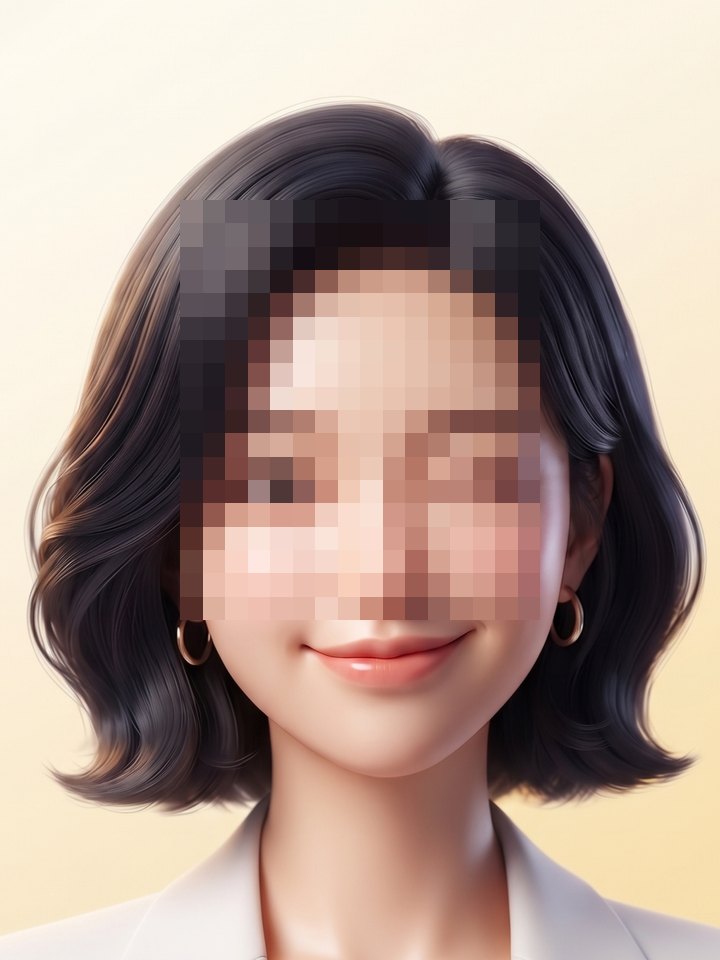
Mosaic replaces the area with large color blocks for a natural look, while black out fills the area completely.
Mosaic suits faces and license plates; black out suits text and numbers.
Can I do several photos at once?+
Add several photos, mark the areas to hide on each one with the 'Mosaic' button, then download them all at once as a ZIP.
Are my photos stored on a server?+
No.
Your photos are never sent over the internet.
They're processed only inside the browser you're using right now, and when you close the page, both the originals and the results are cleared from your device's memory.
Is information like the photo's location passed along too?+
Result files don't include EXIF metadata such as location or device info.
The rotation info is applied first so your photo doesn't end up sideways, and then it's removed.