
Auto Enhance Photos
Make dark, hazy or yellowish photos bright and clear in one step.
Fit the file size at the same time.
- Choose an edit and you're done
- No sign-up
- No upload
or drag and drop hereJPG·PNG·HEIC·WebP · up to 100MB each · up to 20 photos🥖 Big, heavy photo dough is welcome
Photos are processed only on this device and never uploaded
How should we fit it?
When off, photos are saved at the best quality without worrying about file size.
If the site you're uploading to has a size limit, turn it on.
Automatically fixes brightness and contrast, yellow or blue color casts, soft edges and noise.
Check the result with 'Before/after'.
No size limitOriginal ratioJPG✨ Auto enhancewill be applied
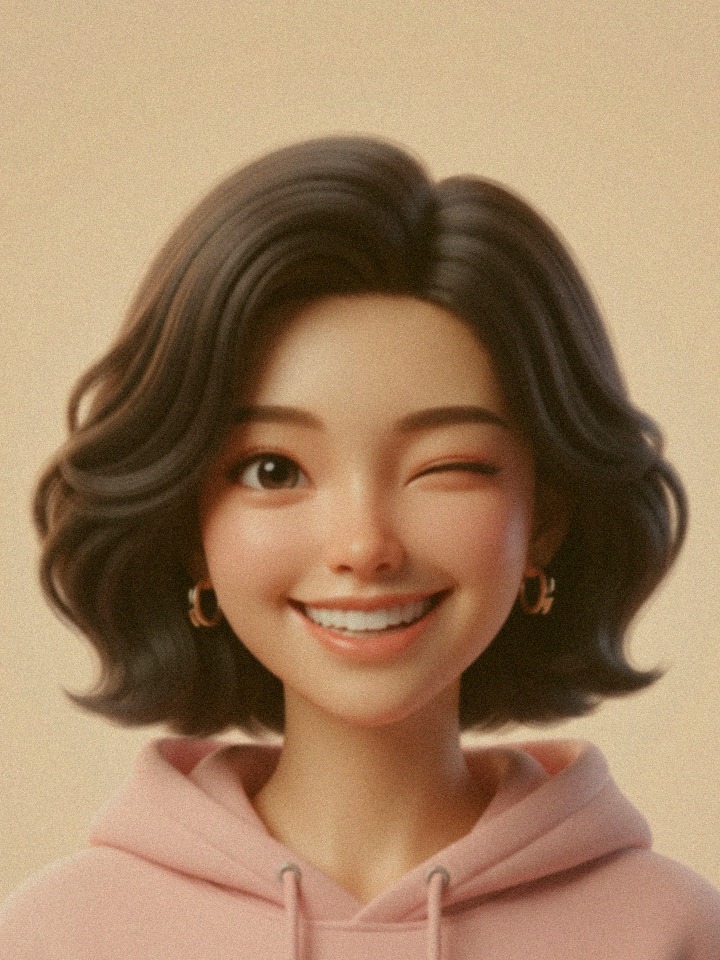
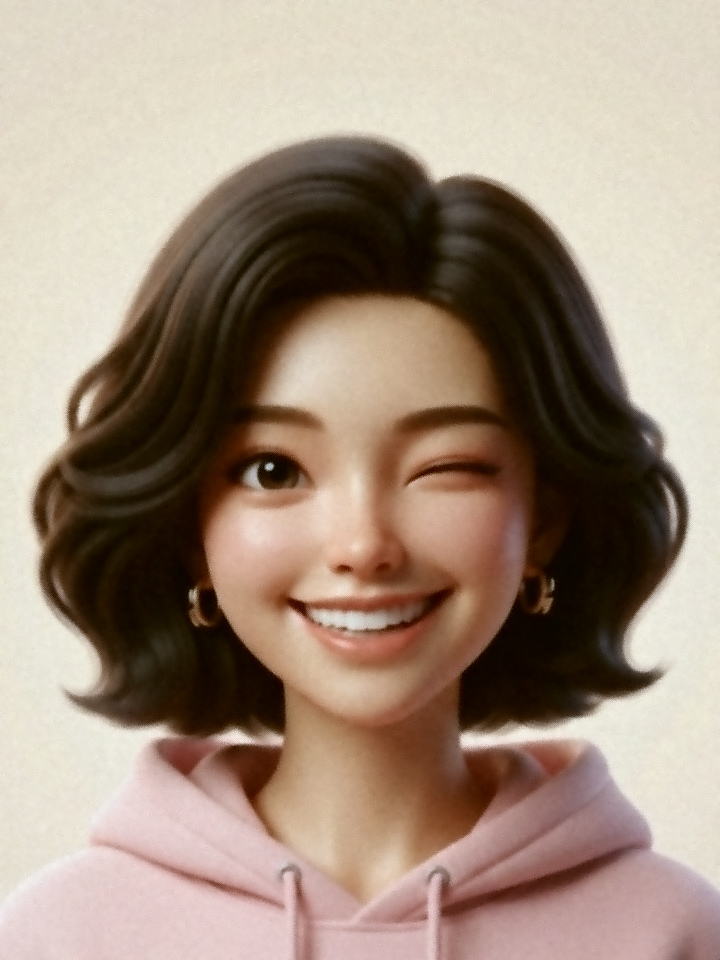
See the difference
How to use
- 1
Choose a photo to enhance.
'Auto enhance' is already on. - 2
Tap 'Before/after' on the result and slide to compare with the original.
- 3
Save it if you like it.
If there's a size limit, turn that on too.
FAQ
What does it fix?+
It automatically measures and fixes three things in each photo: brightness and contrast (that hazy look), yellow or blue color casts, and edges that got soft from resizing.
It does not reshape faces or retouch skin.
Can it rescue blurry or out-of-focus photos?+
Sharpening edges helps a little, but it can't create detail that isn't there in a badly shaken or out-of-focus photo.
For those, retaking the photo is best.
Does enhancing make the file bigger?+
A sharper photo holds more detail, so at the same quality the file gets a little bigger.
If you turn on a size limit, it's saved to fit.
Can I use it on ID photos?+
Passport and ID photos must not be retouched in ways that change the face.
Auto enhance only adjusts brightness, color and sharpness, but if the requirements are strict, save with 'Keep original'.
Are my photos stored on a server?+
No.
Your photos are never sent over the internet.
They're processed only inside the browser you're using right now, and when you close the page, both the originals and the results are cleared from your device's memory.